Download the mobile app


learn
legal
BTC Markets Pty Ltd ACN 164 093 887 is an authorised representative (AR No. 1297122) of BTCM Payments Limited ACN 643 241 829 (AFSL No. 525840)
©2026 BTC Markets Pty Ltd. All rights reserved.
IIf you have completed a Quick Buy/Sell transaction, you can view your history on the New platform or Classic platform.
1. Sign in to your BTC Markets account via the website, selecting New from login options.
2. Ensure that you're on the New platform. You can switch to the New platform from the top navigation bar.
3. Select Transactions in the left menu bar.
4. The Transactions screen will then show your trade history for Quick Buy/Sell with details for each trade:
Note: For all other transactions, click the All transactions tab.
1. Sign in to your BTC Markets account via the website, selecting Classic from login options.
2. Ensure that you are on the Classic platform. You can navigate to Classic via the top navigation bar.
3. Click the Transaction History option at the top of the Account screen.
4. You can either view the transactions on this screen or export them to CSV.
5. Simple Trade transactions will appear as two transfers:
Both transfers will show the details of the trade in their description:
Need help? Submit a support request and our team will be in touch as soon as possible.
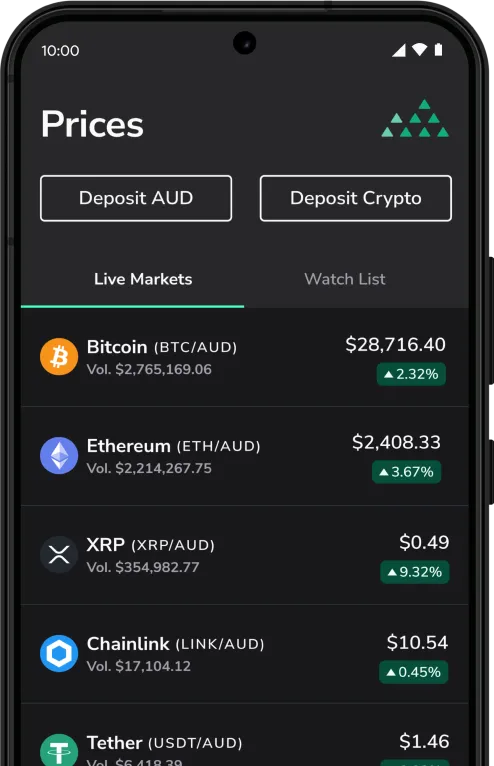
Download the mobile app
BTC Markets Pty Ltd ACN 164 093 887 is an authorised representative (AR No. 1297122) of BTCM Payments Limited ACN 643 241 829 (AFSL No. 525840)
©2026 BTC Markets Pty Ltd. All rights reserved.