Download the mobile app


learn
legal
BTC Markets Pty Ltd ACN 164 093 887 is an authorised representative (AR No. 1297122) of BTCM Payments Limited ACN 643 241 829 (AFSL No. 525840)
©2026 BTC Markets Pty Ltd. All rights reserved.
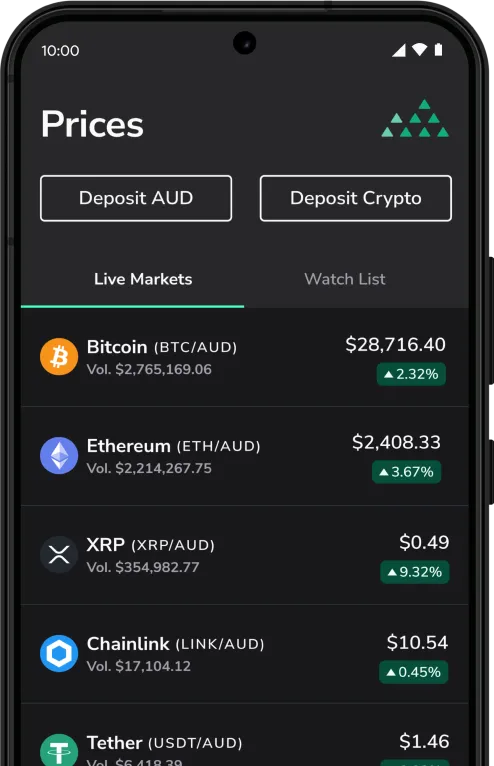
With the mobile app, you can buy or sell assets by placing orders in our exchange order books on the go.
You’ll need a fully verified and funded BTC Markets account to trade on the mobile app. To learn how to deposit funds to your account, please see How to fund your account.
1. Sign in to your BTC Markets account via the mobile app.
2. Navigate to the trade section by clicking Buy/Sell in the bottom navigation bar.
3. Click the Simple tab at the top of the screen.
4. Click the asset name to change asset. Select the asset you want to buy from the dropdown list.
5. Select the Buy side.
6. Enter the amount you want to spend.
7. Click the Buy button.
8. Review the details of your buy order:
9. Click the Confirm button.
10. If your buy order is successfully placed, you will see a success screen.
1. Sign in to your BTC Markets account via the mobile app.
2. Navigate to the trade section by clicking Buy/Sell in the bottom navigation bar.
3. Click the Advanced tab at the top of the screen.
4. Click the asset name to change asset. Select the asset you want to buy from the dropdown list.
5. Select the Buy side.
6. Select the order type you’d like to use:
7. Enter the details of your chosen order type, then click the Buy button.
8. Review the details of your buy order:
9. Click the Confirm button.
10. If your buy order is successfully placed, you will see a success screen.
Note: Depending on your chosen order type and market conditions, the time it takes to successfully fill and execute your trade will vary.
If you encounter any issues while completing a trade, please raise a support ticket.
Download the mobile app
BTC Markets Pty Ltd ACN 164 093 887 is an authorised representative (AR No. 1297122) of BTCM Payments Limited ACN 643 241 829 (AFSL No. 525840)
©2026 BTC Markets Pty Ltd. All rights reserved.